Indonesian Nucleotide Archive (INNA) Bio Repository
Account Registration
- INNA Bio Repository can be accessed from INNA Bio Repository

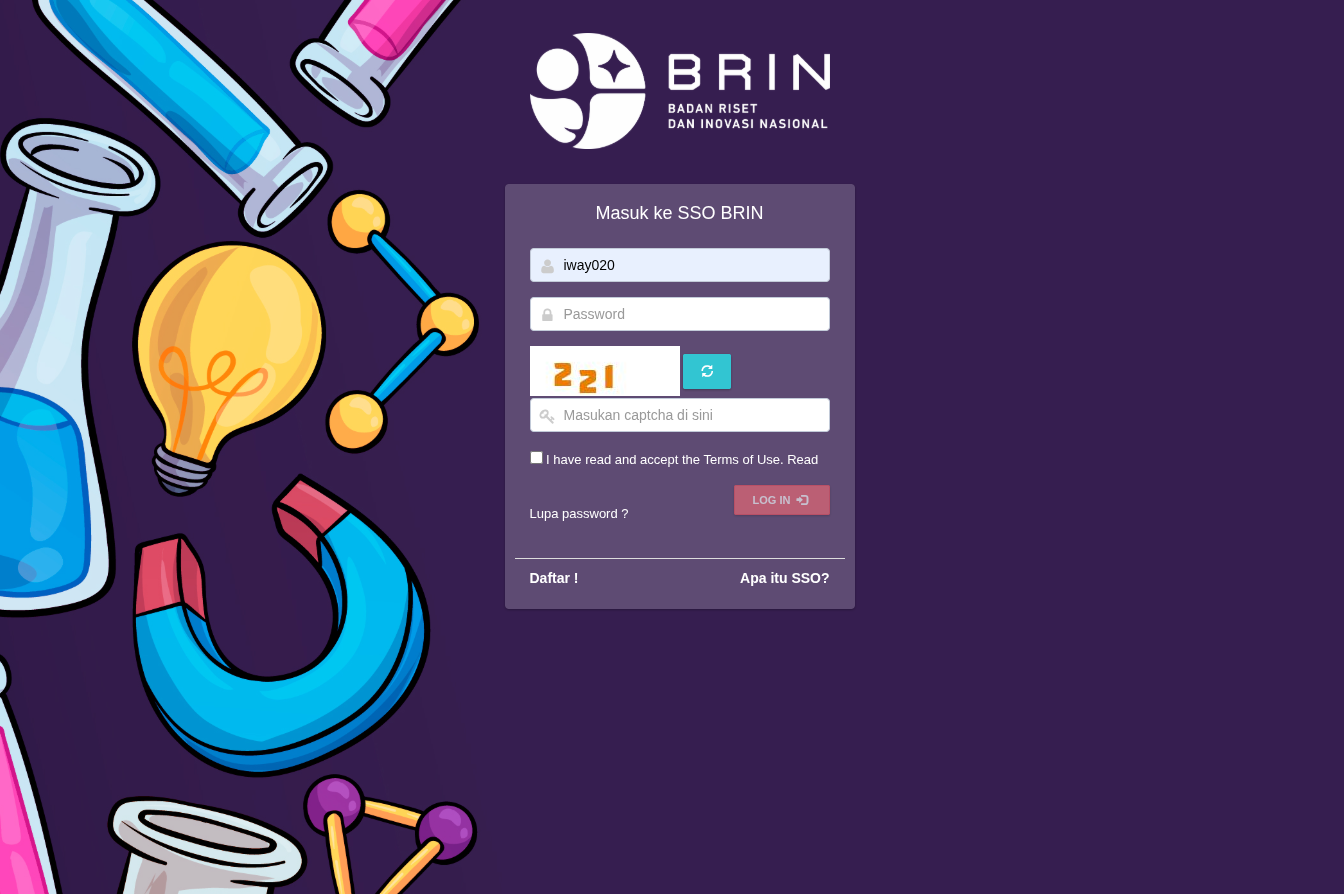
- To Register you will redirected to BRIN SSO page, click Daftar! button to register.
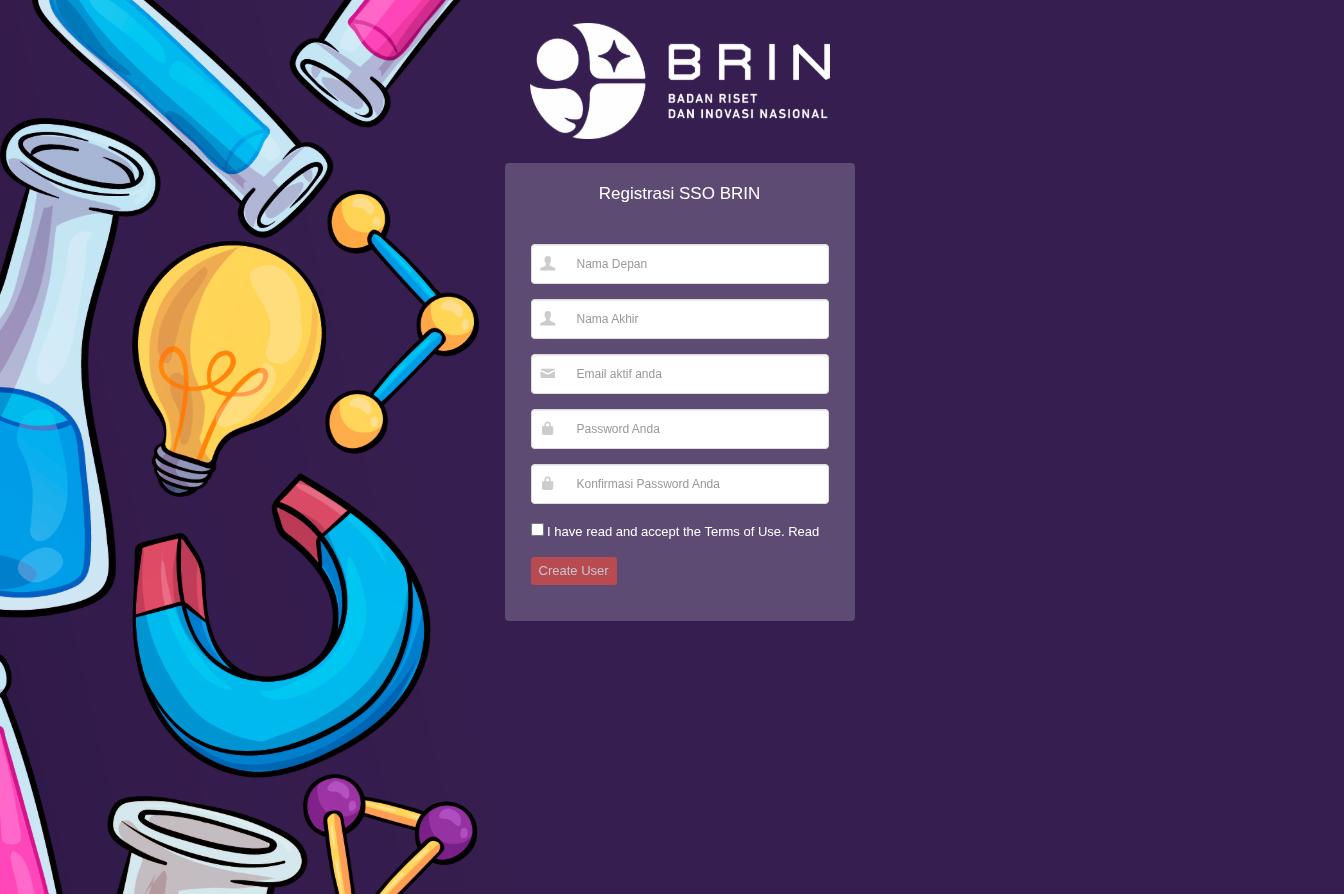
- Completely Fill the Registrasi SSO BRIN form and click Create User button.
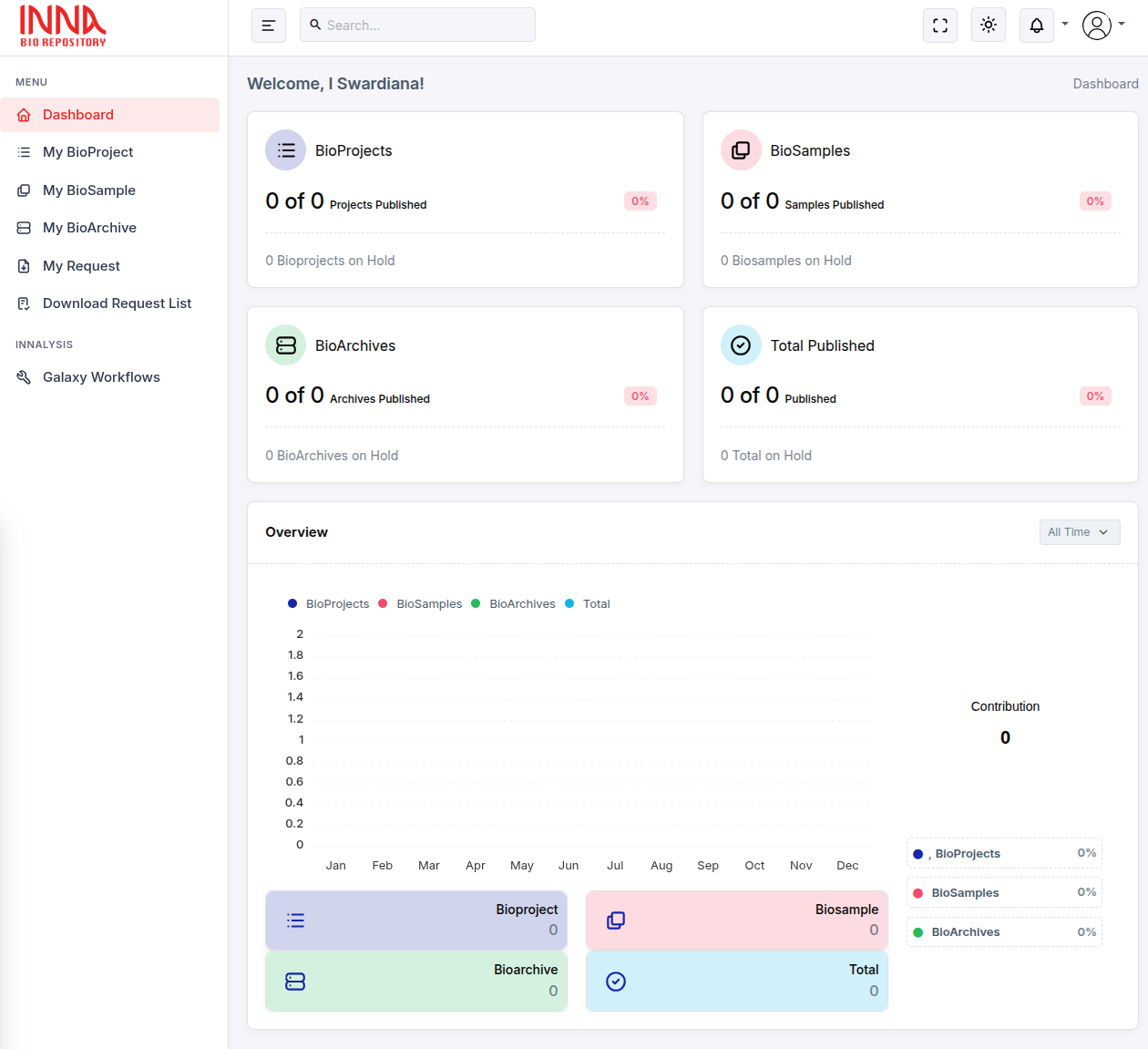
- You can now login to INNA Bio Repository.
BioProject
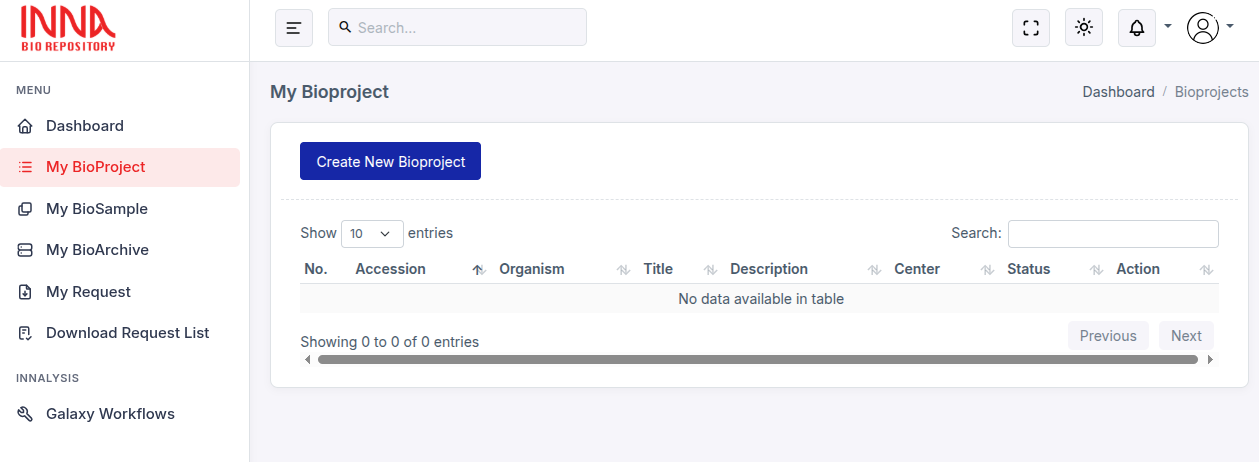
- From INNA Bio Repository Dashboard click My BioProject menu.
- To create new BioProject click Create New BioProject button.
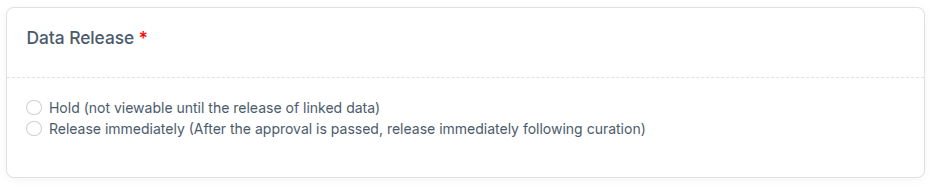
- Fill the required Submitter Info Form, making sure the Data Release form selected accordingly then click Next button.
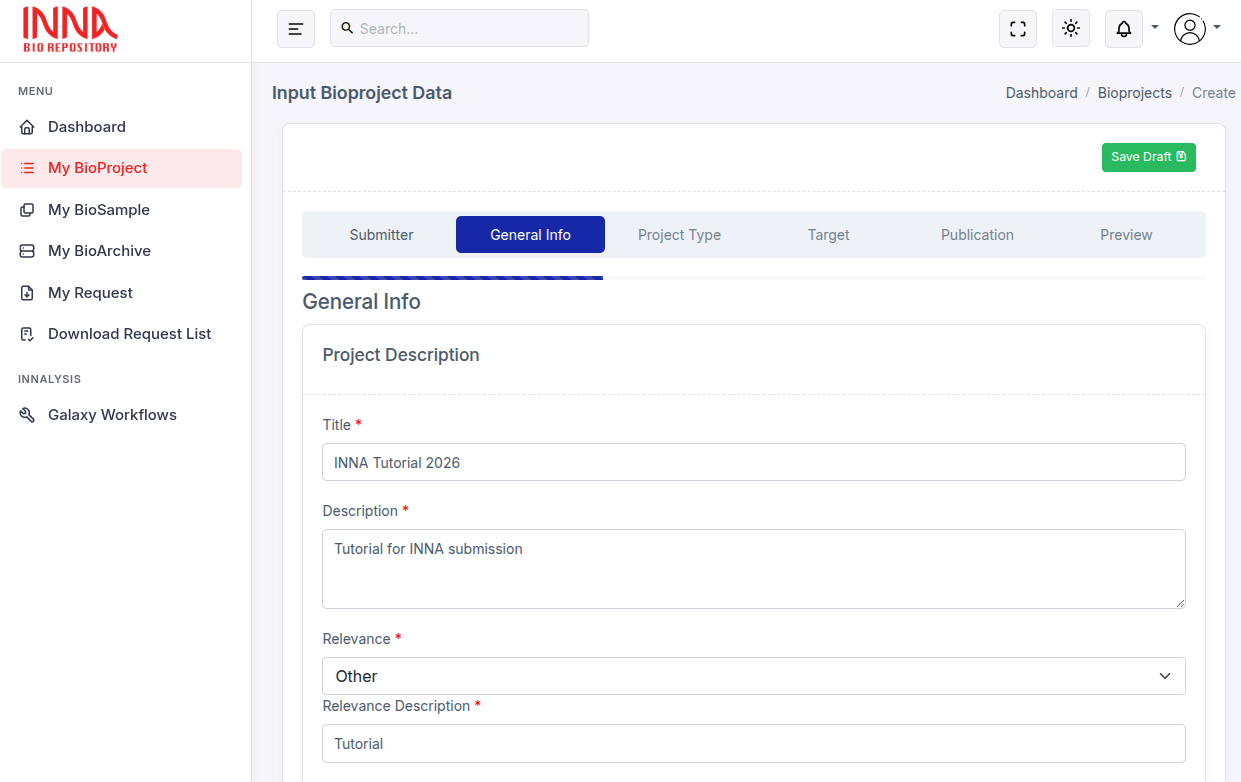
- Fill the required General Info Form, then click Next button.
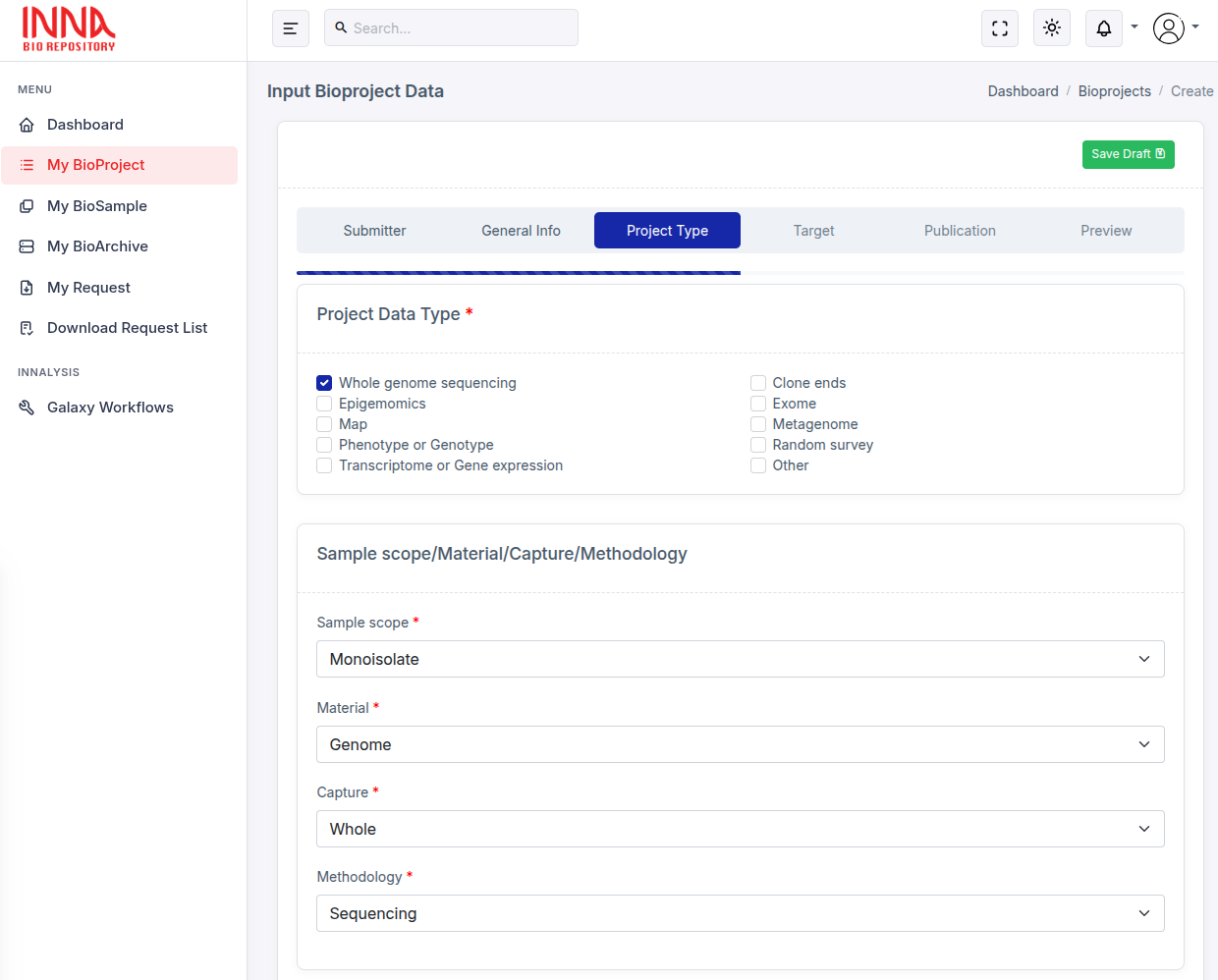
- Fill the required Project Type Form, then click Next button.
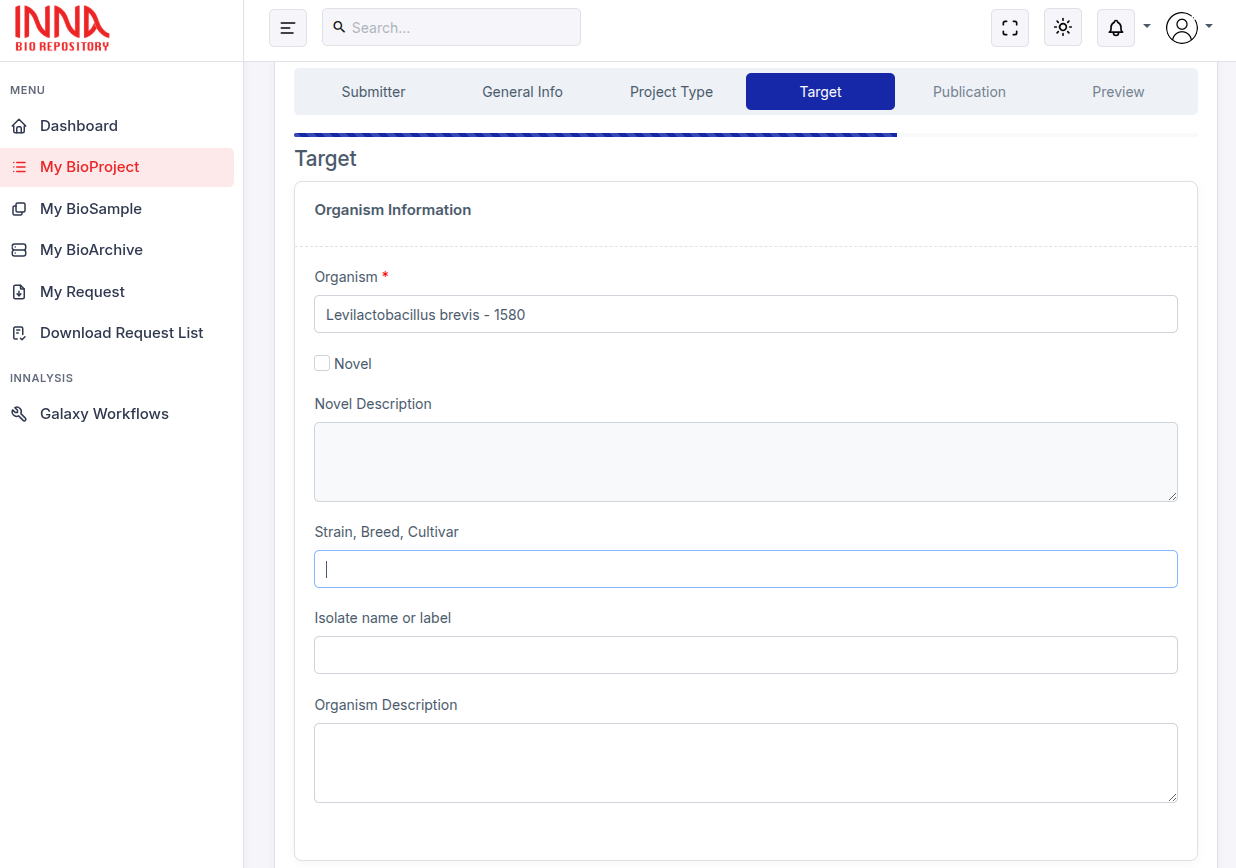
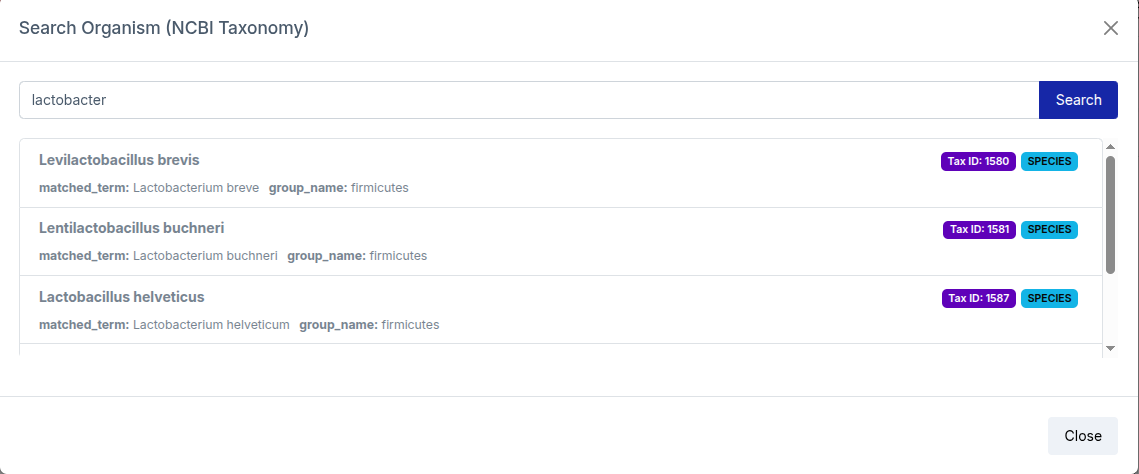
- Fill the required Target Form, to search the Organism you can click the form and search for the Organism. After you select the Organism, confirm with the Select this Organism button. Make sure all of the required form is filled then click Next button.
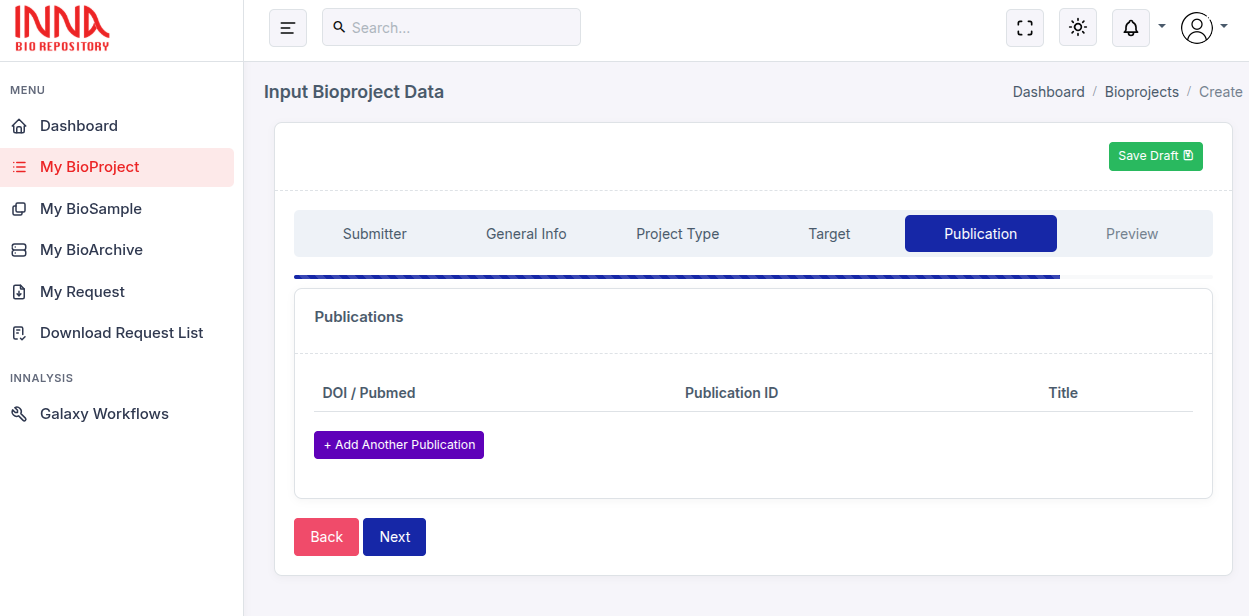
- Fill the required Publication Form, then click Next button.
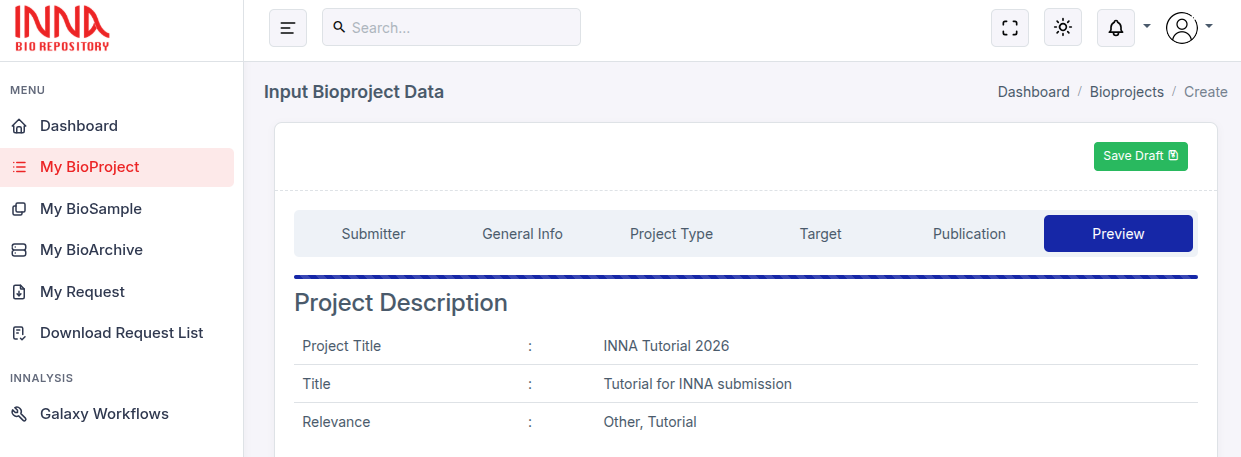
- Check all the information on Review Form is correct, then click Finish! button.
BioSample
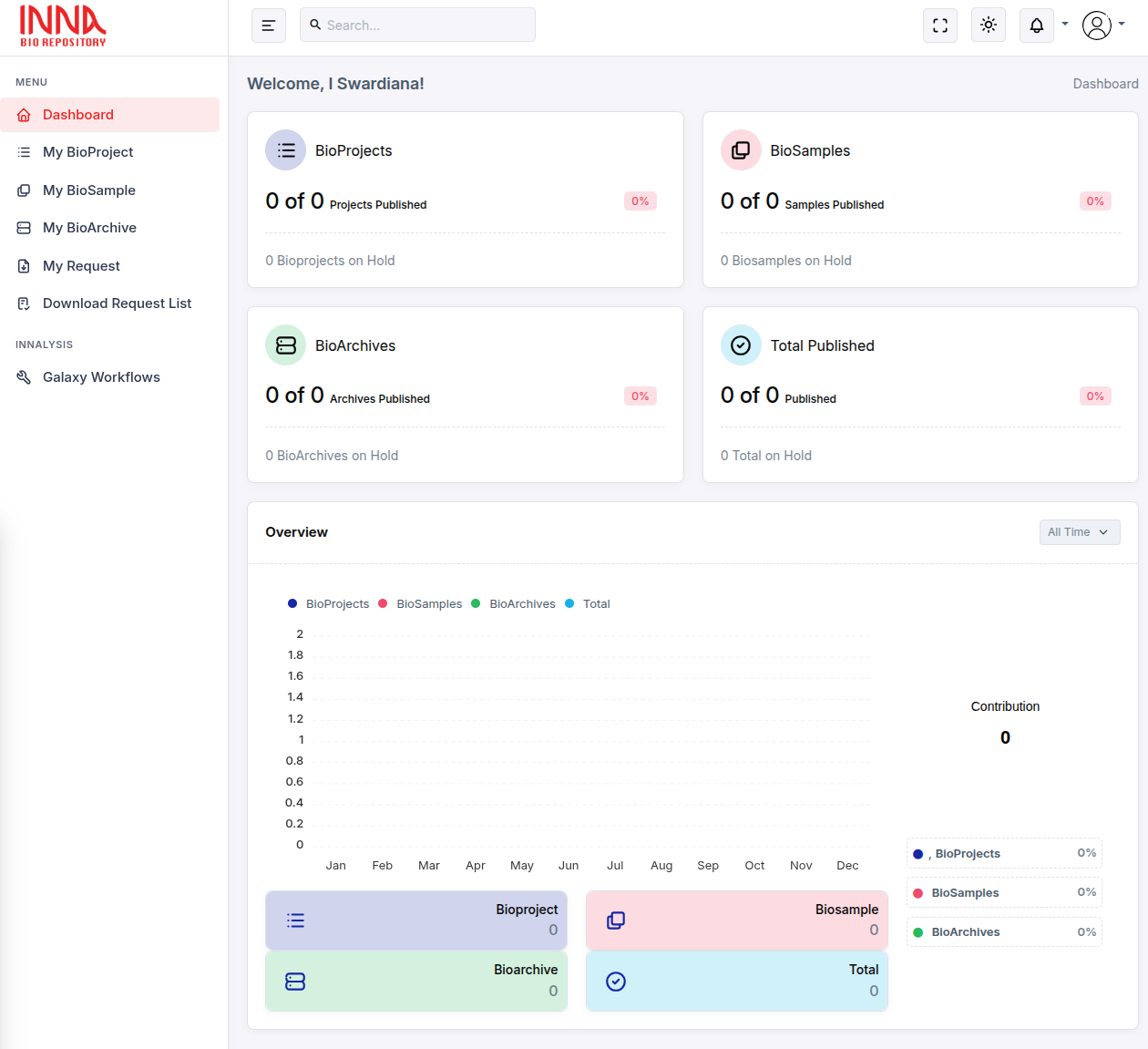
- From INNA Bio Repository Dashboard click My BioSample menu.
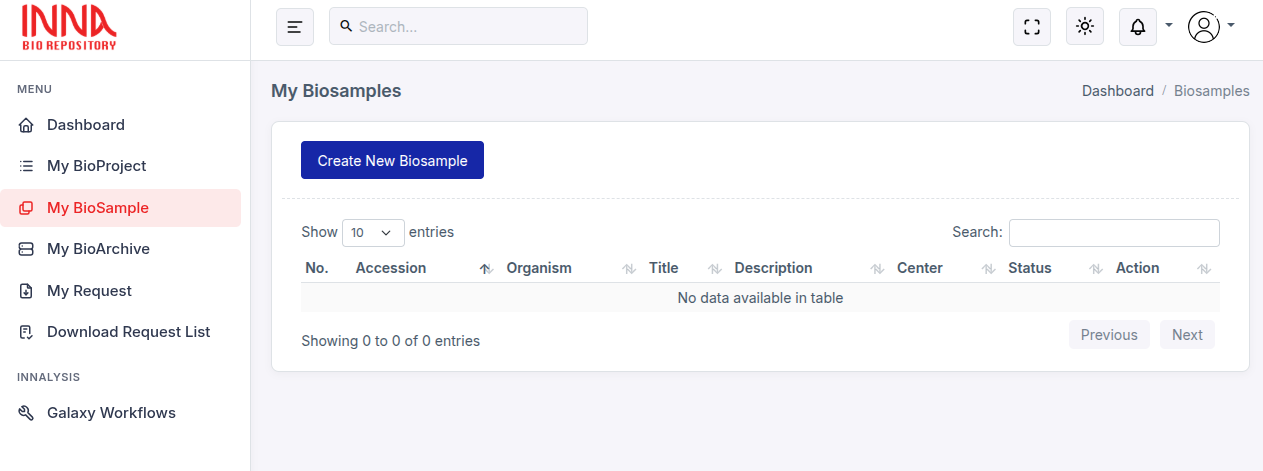
- To create new BioSample click Create New BioSample button.
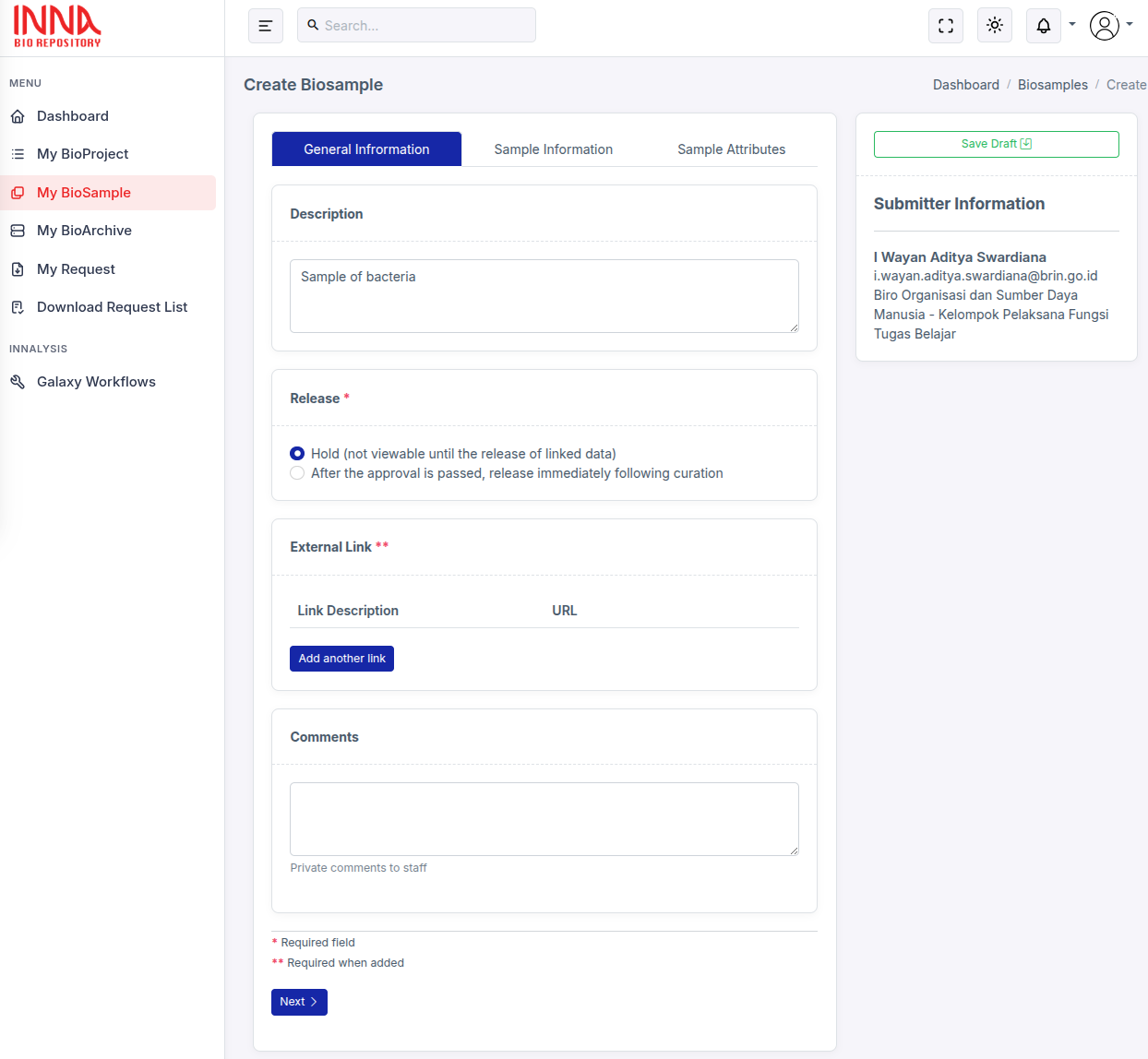
- Fill the required General Information Form, making sure the Data Release form selected accordingly then click Next button.
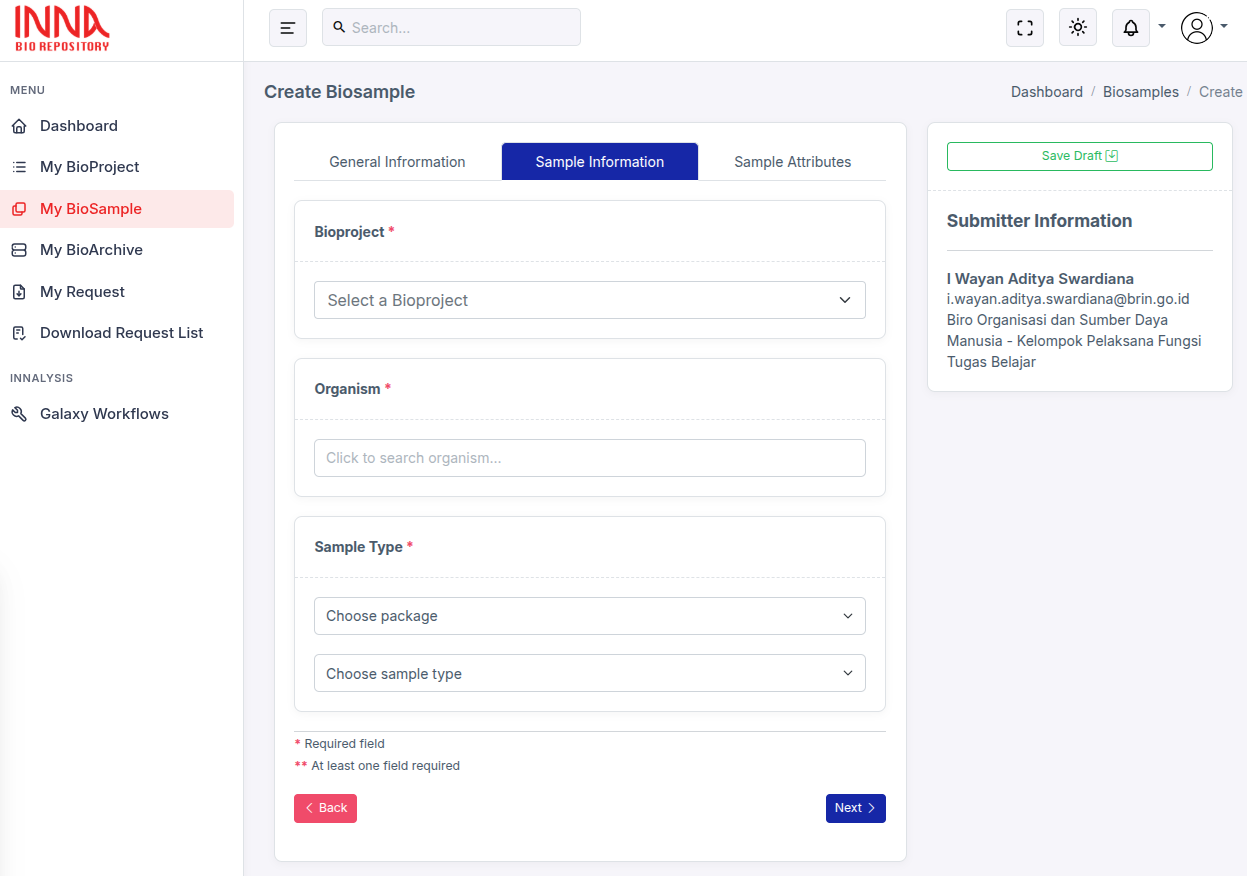
- Fill the required Sample Information Form, making sure the Bioproject form selected accordingly. Choose the appropriate package for the Biosample and fill the required form. After filling the form click Next button.
BioArchive
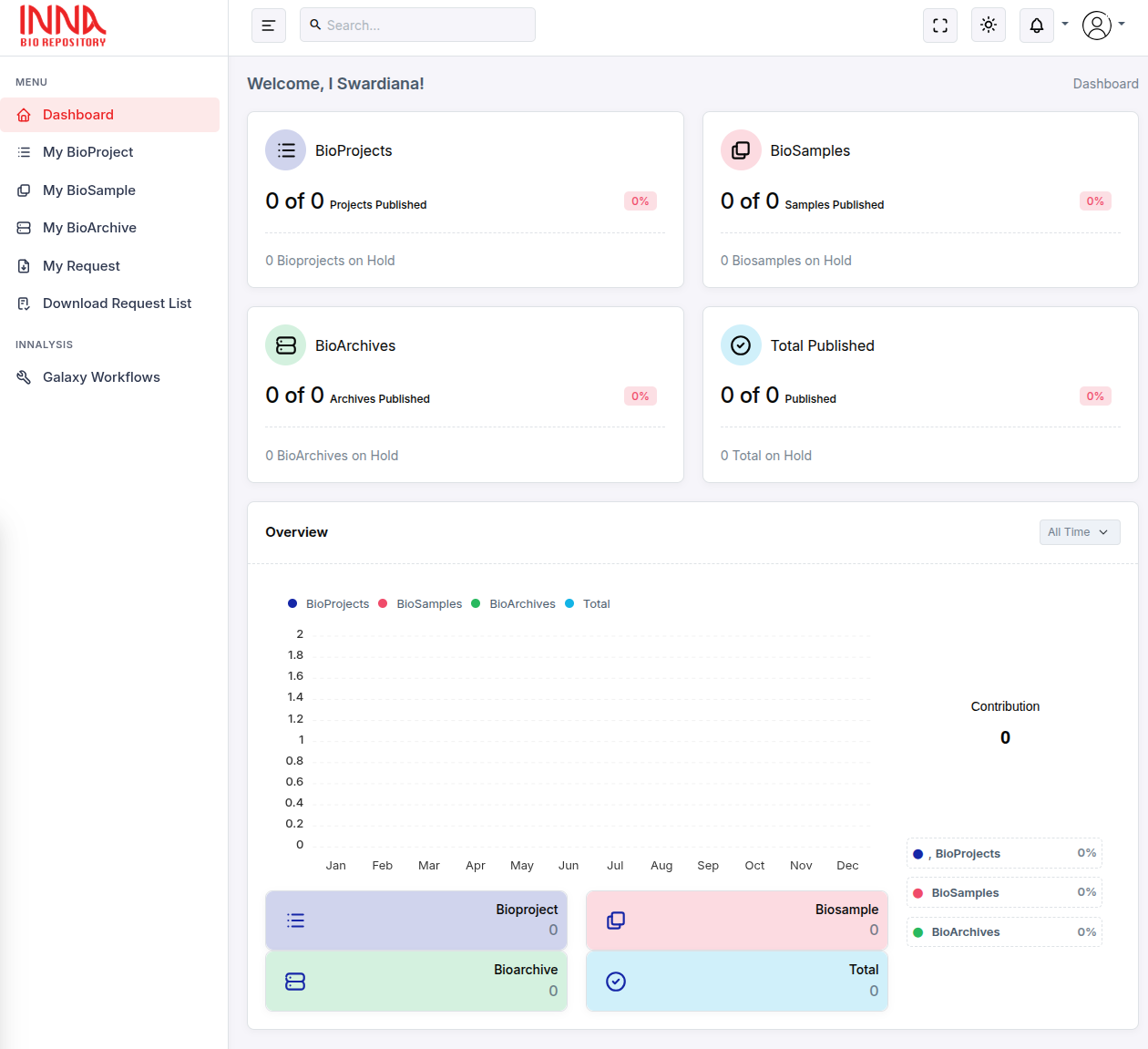
- From INNA Bio Repository Dashboard click My BioArchive menu.
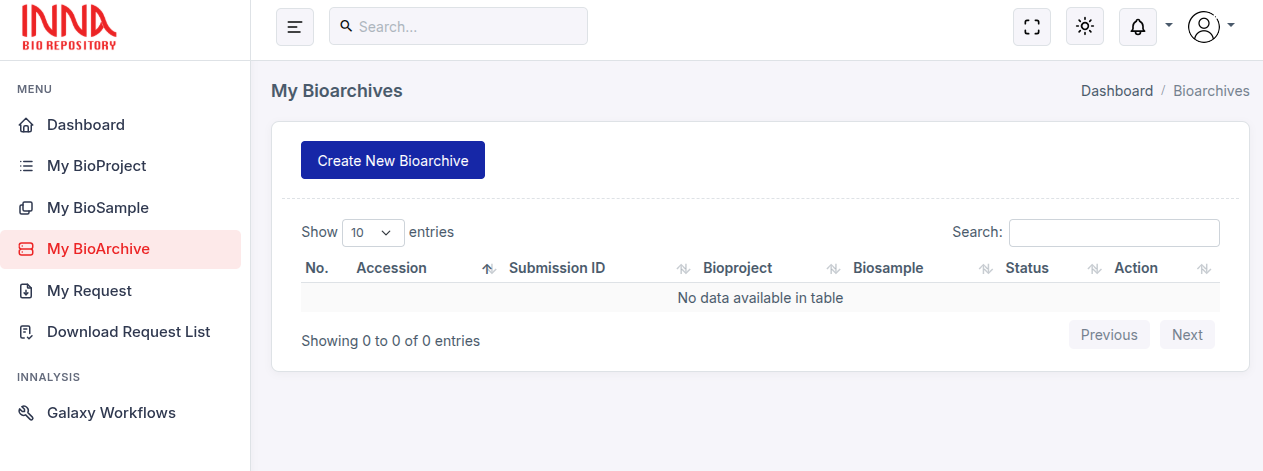
- To create new BioArchive click Create New BioArchive button.
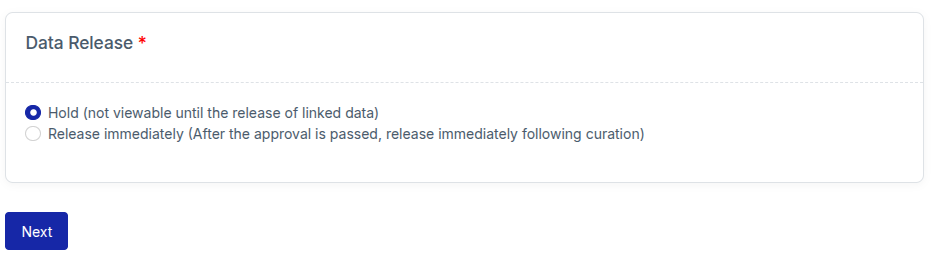
- Fill the required Submitter Info Form, making sure the Data Release form selected accordingly then click Next button.
- Select the Bioproject on Bioproject Form, then click Next button.

BioArchive Download Request
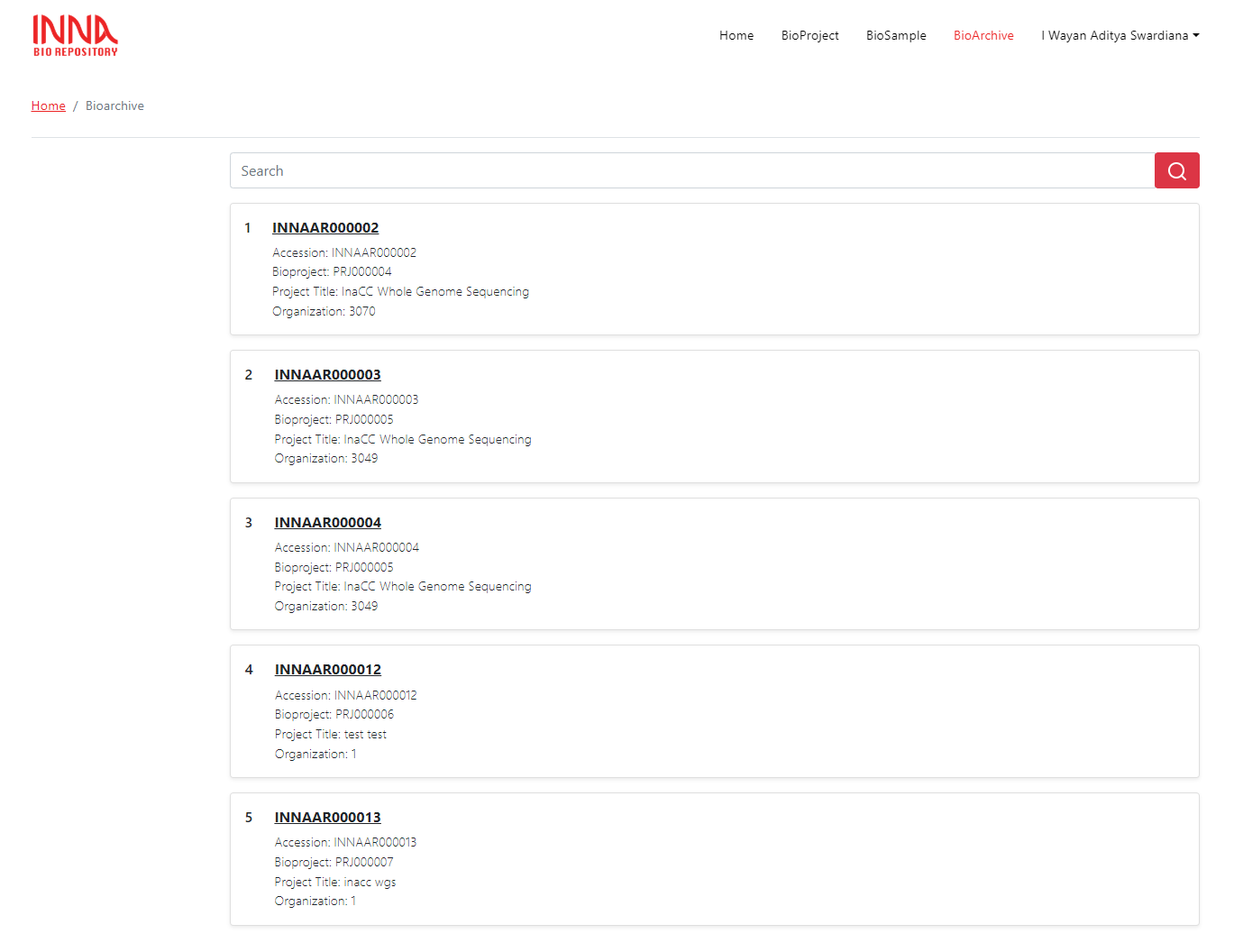
- From the front page, choose Collections menu then choose Bioarchive.

- Select the bioarchive that you want to download.
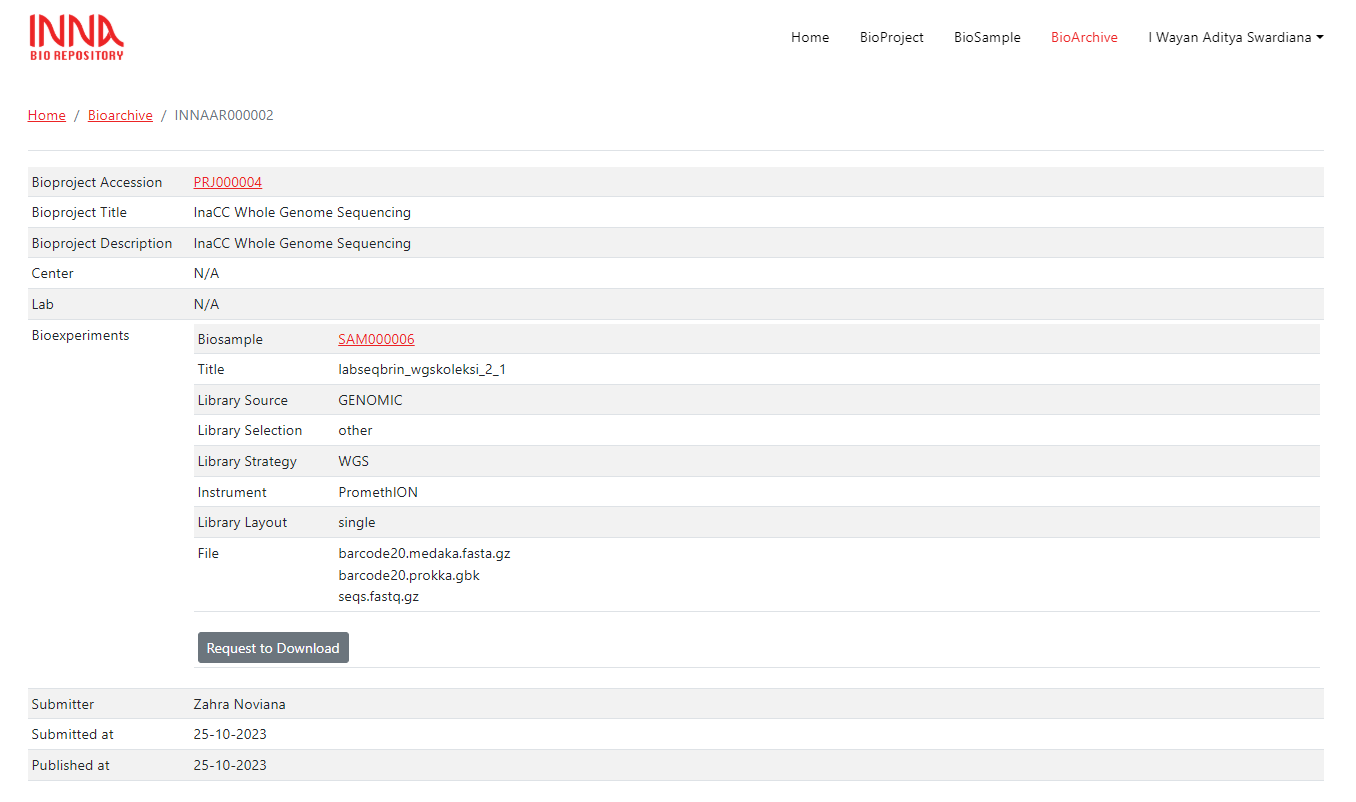
- Confirm the bioarchive that you want to download by clicking Request to Download button.
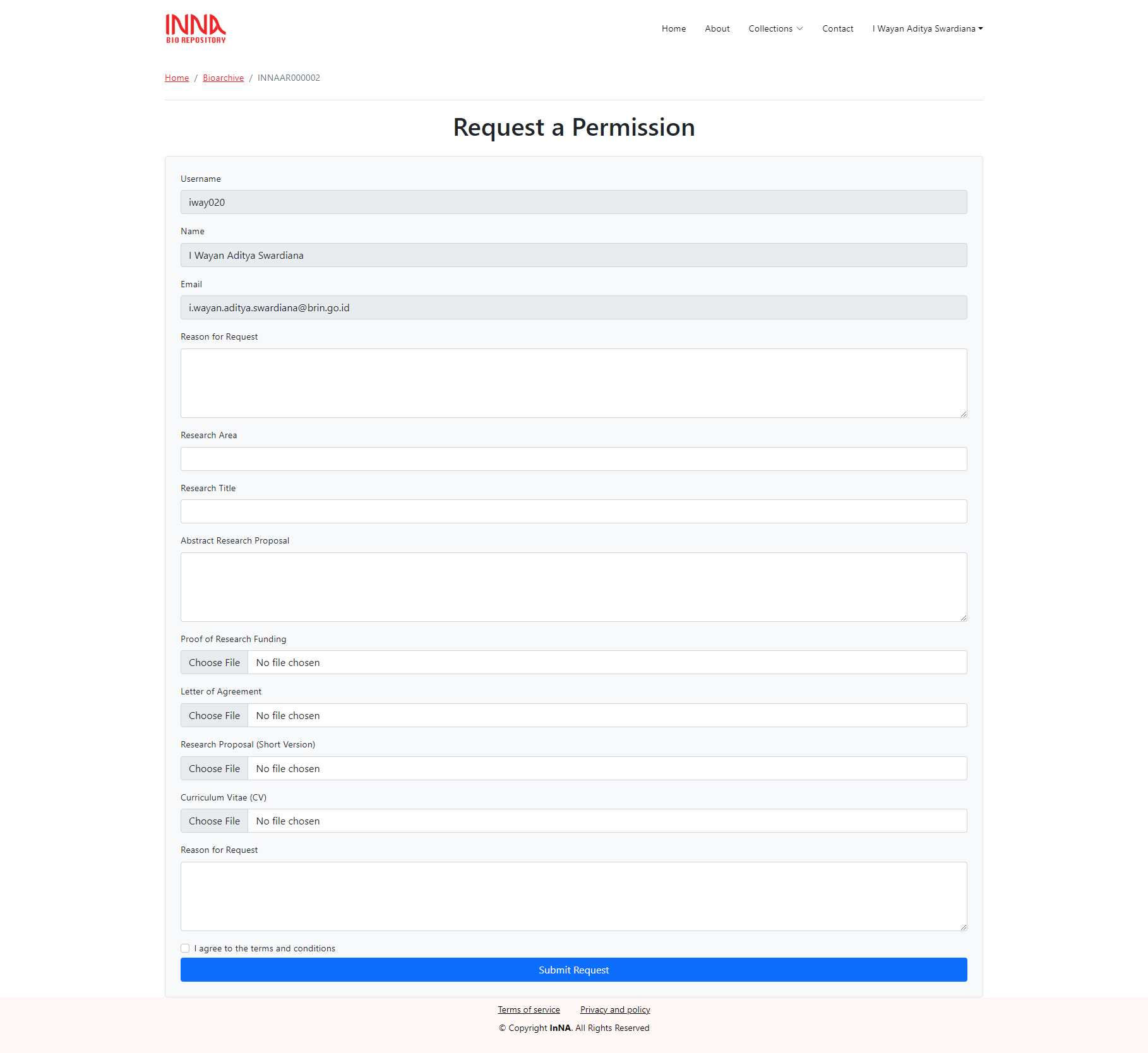
- Completely fill the Request a Permission form and click Submit Request button.
- If the request is approved the download button will appears on the bioarchive page.
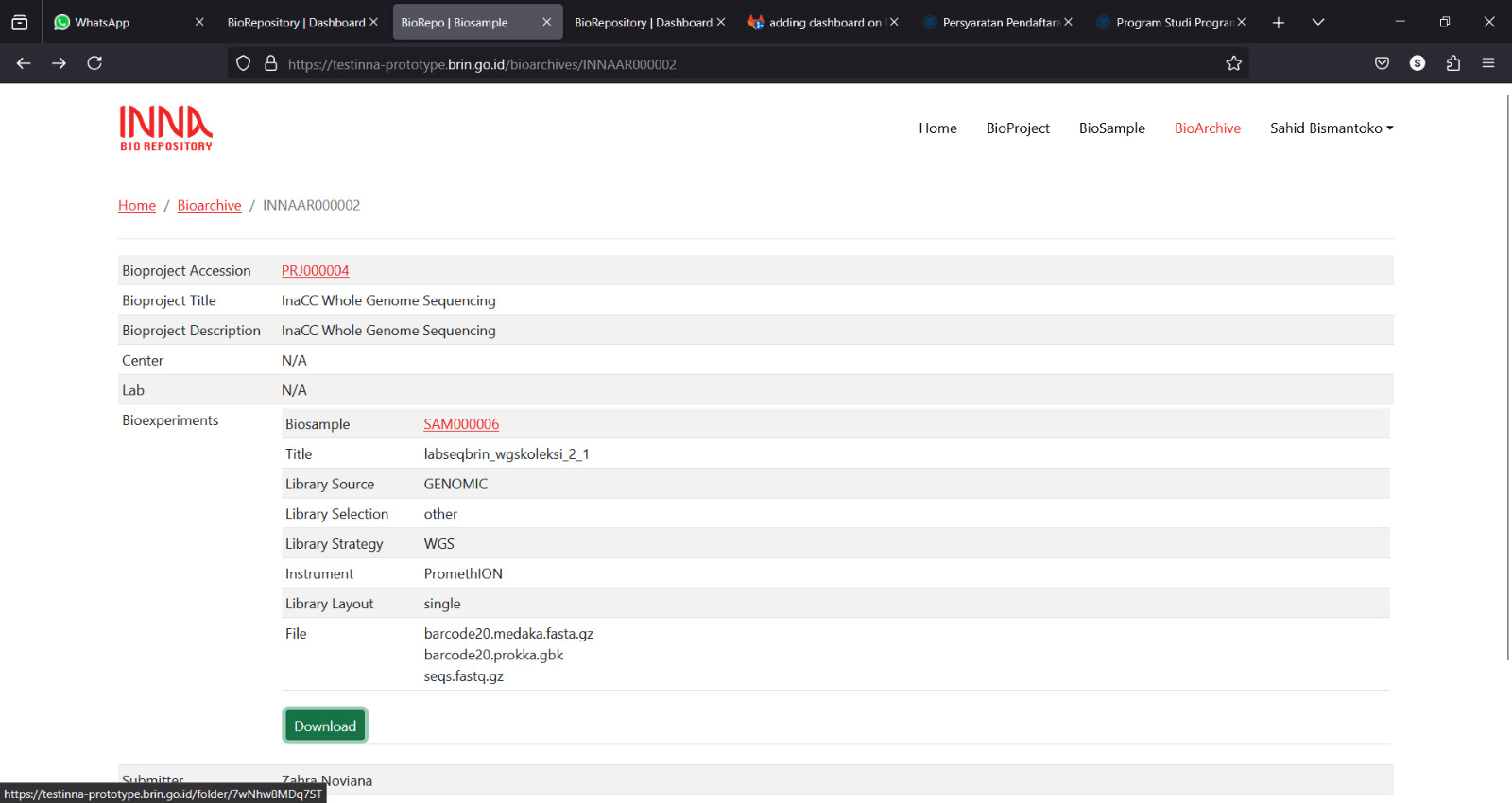
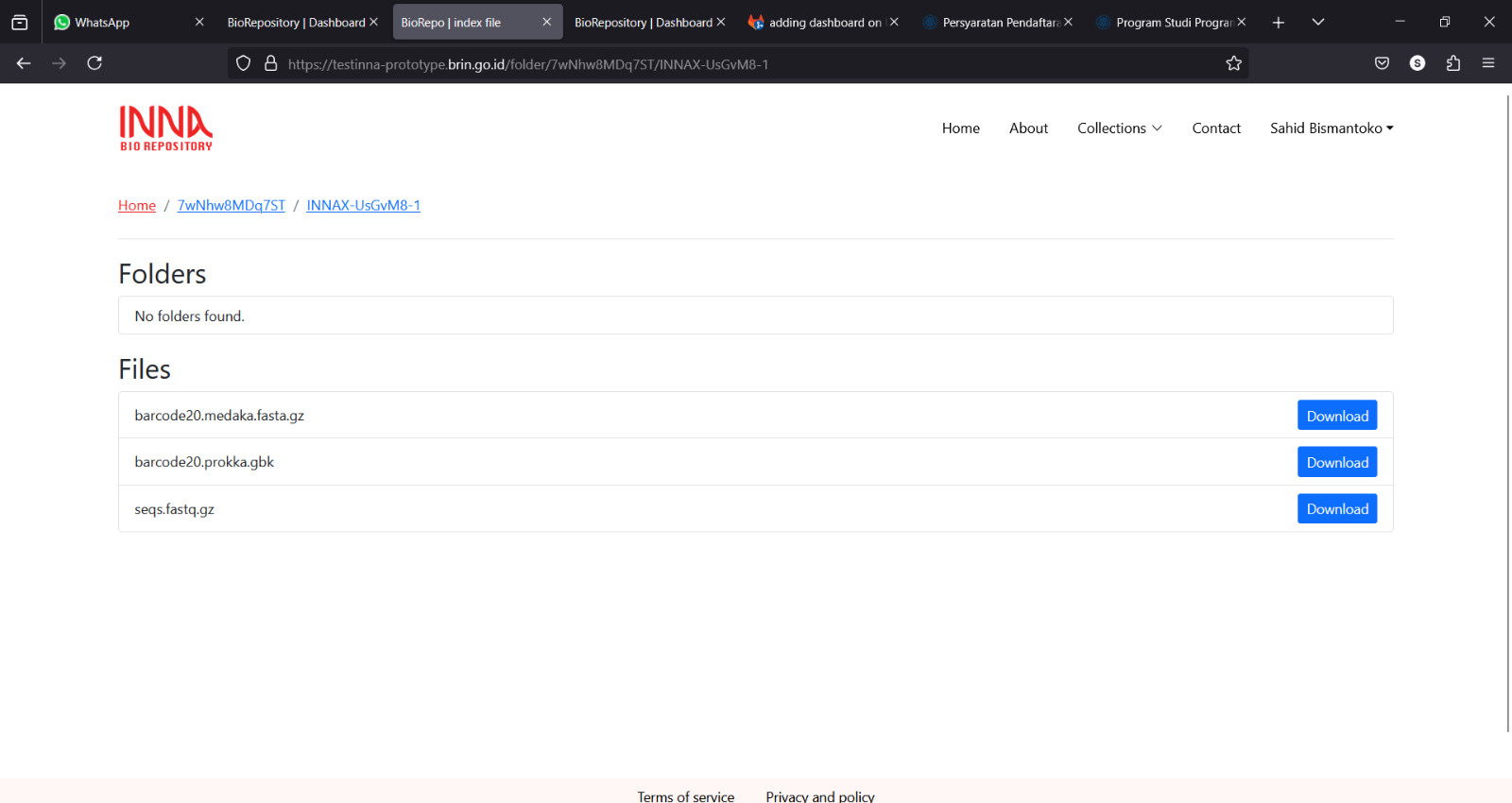
- To download the file, choose the folder and click the Download button.